
Evidence type: hands_on. Results are limited to the documented conditions.
Abstract
On one Windows 11 PC in everyday use, we gave Everything and Windows' built-in search the same test. First, we created more than a million files at once to see which tool could find them first. Second, we searched by name among nearly 400,000 files already on the PC to see which was faster and which counted correctly. The main results:
- New files: Everything could find all one million files as soon as they were created. Windows Search had picked up only 12.4% of them after about 10 hours.
- Existing files: Searching by name among the 394,396 files and folders already on the PC took Everything about 0.07 seconds each time and Windows Search 0.33 to 5.8 seconds.
- Counting: Everything's counts always matched the true numbers. On the existing files, Windows Search came up about 1% short.
- The cost: Everything's main program used about 401 MB of memory, against about 126 MB for the main Windows Search process.
These results come from one PC on one day, and the two tools were not queried in exactly the same way, so they are not a general verdict.
Introduction
Finding a file by the part of its name you remember is one of the most common things people do on a computer. Windows' built-in search service (Windows Search) powers the File Explorer and Start menu search boxes. It records not only file names but also file contents and properties, so building its index (think of it as a catalogue) takes a lot of work. Microsoft also says it deliberately slows down while you are using the PC [3][4].
Everything is a free third-party tool. According to its maker, it records only file and folder names and does not read contents [1]. Its developer explains that it keeps every name in memory and checks them one by one when you search [2].
From these descriptions you would expect Everything to be faster but to use more memory. These are the vendors' own claims, however. Comparisons online are mostly impressions; they rarely say how they were measured and rarely share raw data. So we measured directly on a real PC, to answer four questions:
- After a large number of files is created at once, how soon can each tool find them?
- How long does each tool take to search files that are already on the PC?
- Are the counts they report correct?
- How much memory does each use?
Materials and Methods
The PC. A desktop in everyday use: Windows 11, an Intel Core i7-10700F processor, 31.9 GB of memory and an NVMe solid-state drive. Software: Everything 1.4.1.1032 with its command-line tool ES 1.1.1.40, and Windows Search with default settings. The test date was 23 November 2026.
Two tests.
- New files: A program created three sets of files at once: about 10,000, 100,000 and 1,000,000 files (10,250, 102,500 and 1,025,000 items including folders). The largest set took about 8 minutes 45 seconds to create. All files were empty, with names that imitate everyday files such as photos, reports and contracts. The program also wrote down how many files each search term should match, which served as the correct answer.
- Existing files: The 394,396 files and folders already in the user folder (excluding the system data folder AppData and the test folder). A program counted them one by one to get the correct answer for each search term.
How we asked and timed. We did not click in the File Explorer search box. Instead, a program asked each tool directly and timed the answer: Everything through its command-line tool es.exe, and Windows Search through the database query interface that Windows provides. We used 10 search terms, such as report, .jpg and 合同 (Chinese for "contract"), plus one made-up term that cannot match anything. For each term we asked two questions: "How many are there?" and "Give me the first 100, sorted by name." Each case was run 2 times as a warm-up and then 10 times for real, and we took the middle value (the median). "How many times slower" was worked out term by term, by dividing the Windows Search median by the Everything median.
Indexing progress. After the new files were created, we asked Windows Search how many items it had picked up in each folder about every 5 minutes for about 10 hours, 116 times per set. Everything was checked once, right after the files were created.
Memory. At 18:48, 19:00 and 19:40 we recorded the memory used by each process of the two tools.
An important caveat: the two timings do not cover exactly the same work. Everything's time includes starting es.exe each time, which alone takes about 0.045 seconds. Windows Search's time includes connecting to its database each time and reading out the results one by one. So "X times faster" below means the total time from asking to getting the answer, the way we asked. It is not the speed of the two search engines themselves.
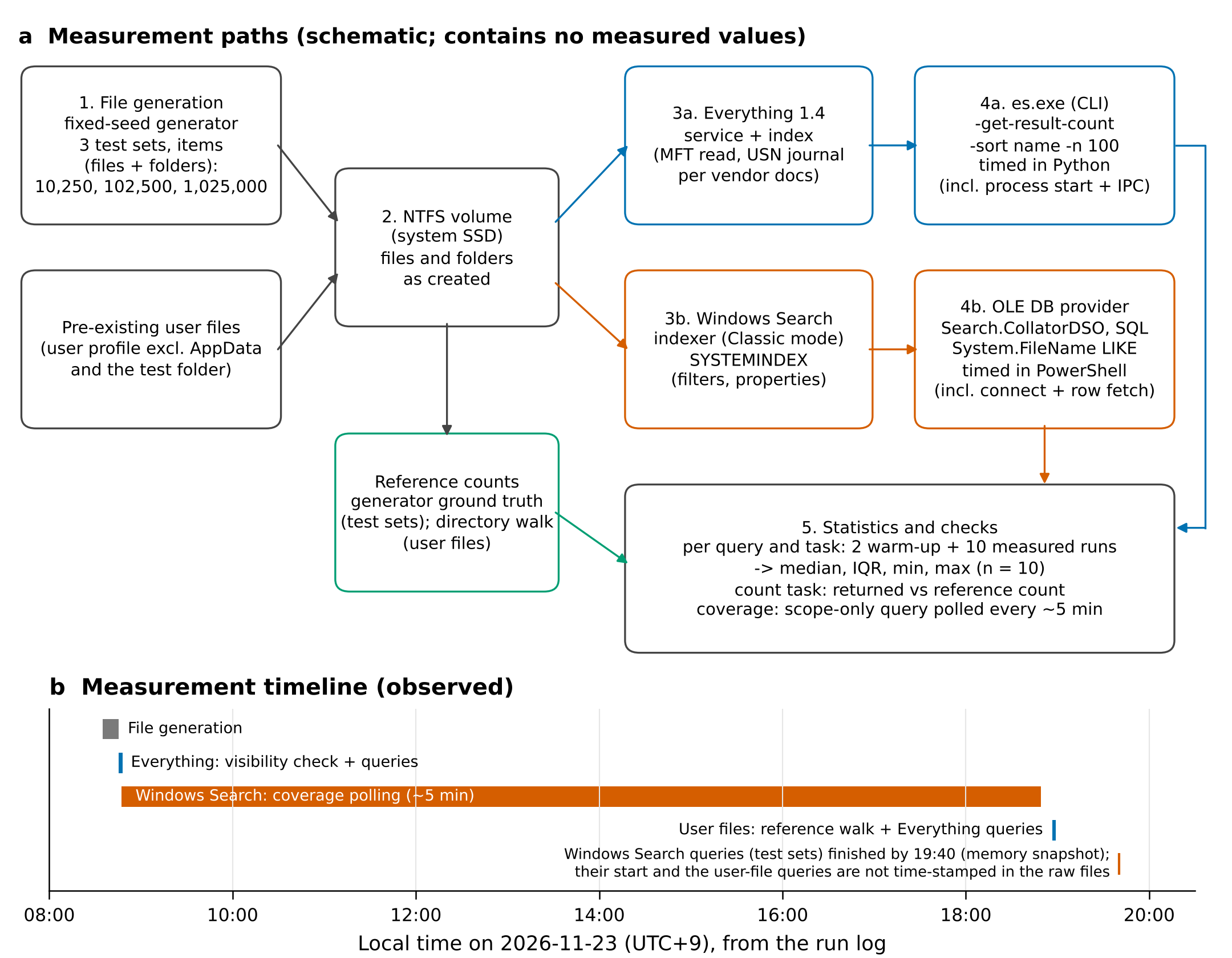 Figure 1. How the test worked (diagram, no measured values) and the actual timeline of the day.
Figure 1 | Diagram (top) and actual timeline (bottom). The top part explains the procedure and contains no measured values; the bottom part is the timeline of the day drawn from the run log.
Results
New files: Everything finds them at once; Windows Search takes a long time
One second after the million files were created, we checked: Everything could already find every file in all three sets (100%).
Windows Search was much slower:
- For the 10,000 and 100,000 sets, it had picked up only 250 and 2,619 items (about 2.4% and 2.6%) from start to finish. These numbers did not grow at all in 10 hours.
- For the million-file set, it reached 25,000 items in the first 38 minutes, then stalled for nearly 3 hours, and then added about 264 items per minute. At the last check, about 10 hours after the files were created, it had picked up only 127,000 items, about 12.4%.
At that speed, the remaining roughly one million items would have taken about 64 more hours. This is a rough estimate based on the speed; we did not actually wait for it to finish.
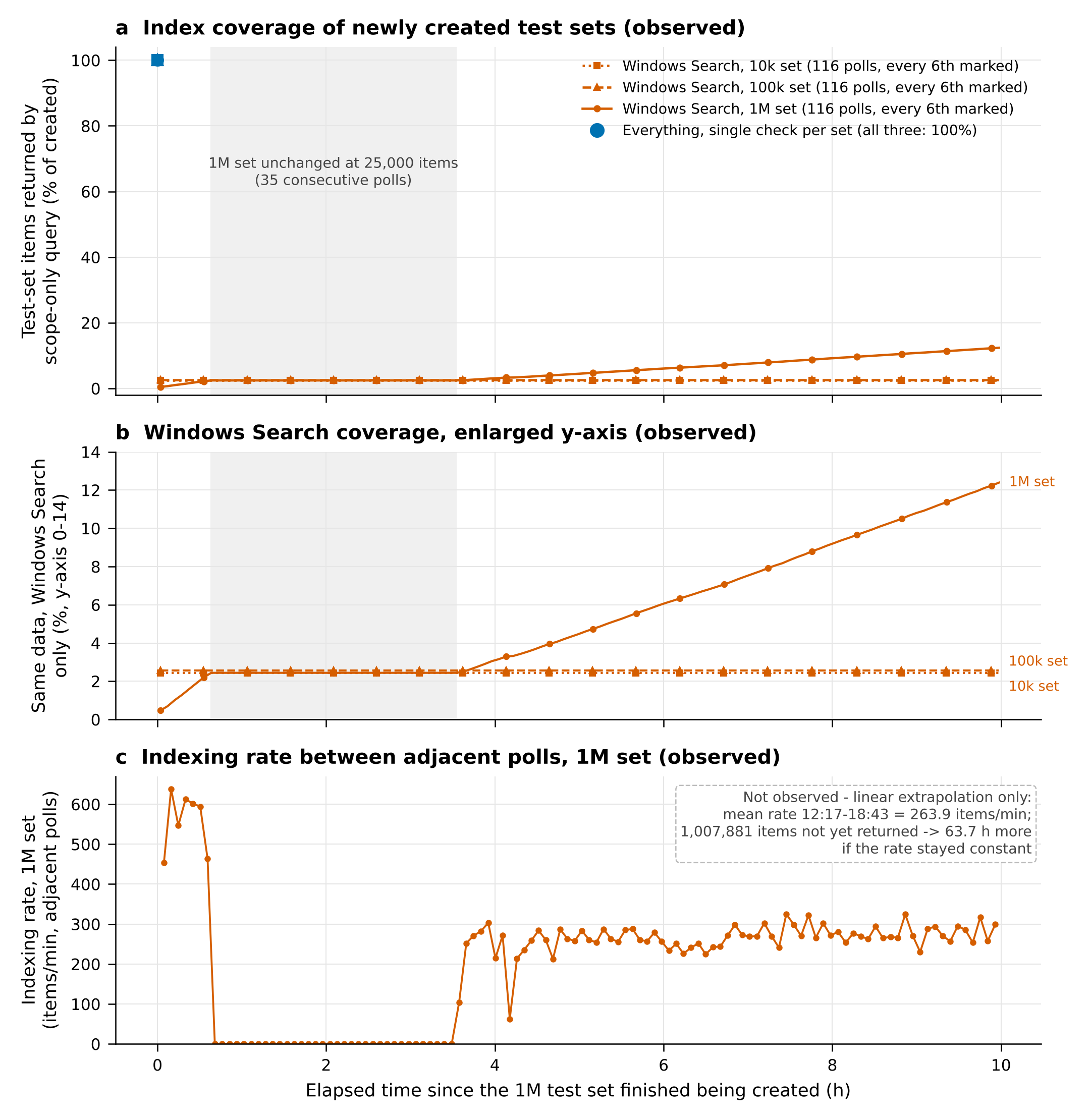 Figure 2. Share of new files picked up by each tool over time; the 64-hour figure is an estimate, not an observation.
Figure 2 | Measured data: the share of new files picked up over time (Windows Search n = 116 checks per set; Everything 1 check per set). Top: both tools. Middle: Windows Search only, with the vertical axis enlarged. Bottom: how many items Windows Search added per minute. The 64 hours in the box is an estimate, not an observation.
After the test, we searched for "合同" (contract) in the test folder. File Explorer showed 1,021 items. Everything showed 10,959, exactly the true number of "合同" files in the three sets (106 + 989 + 9,864).
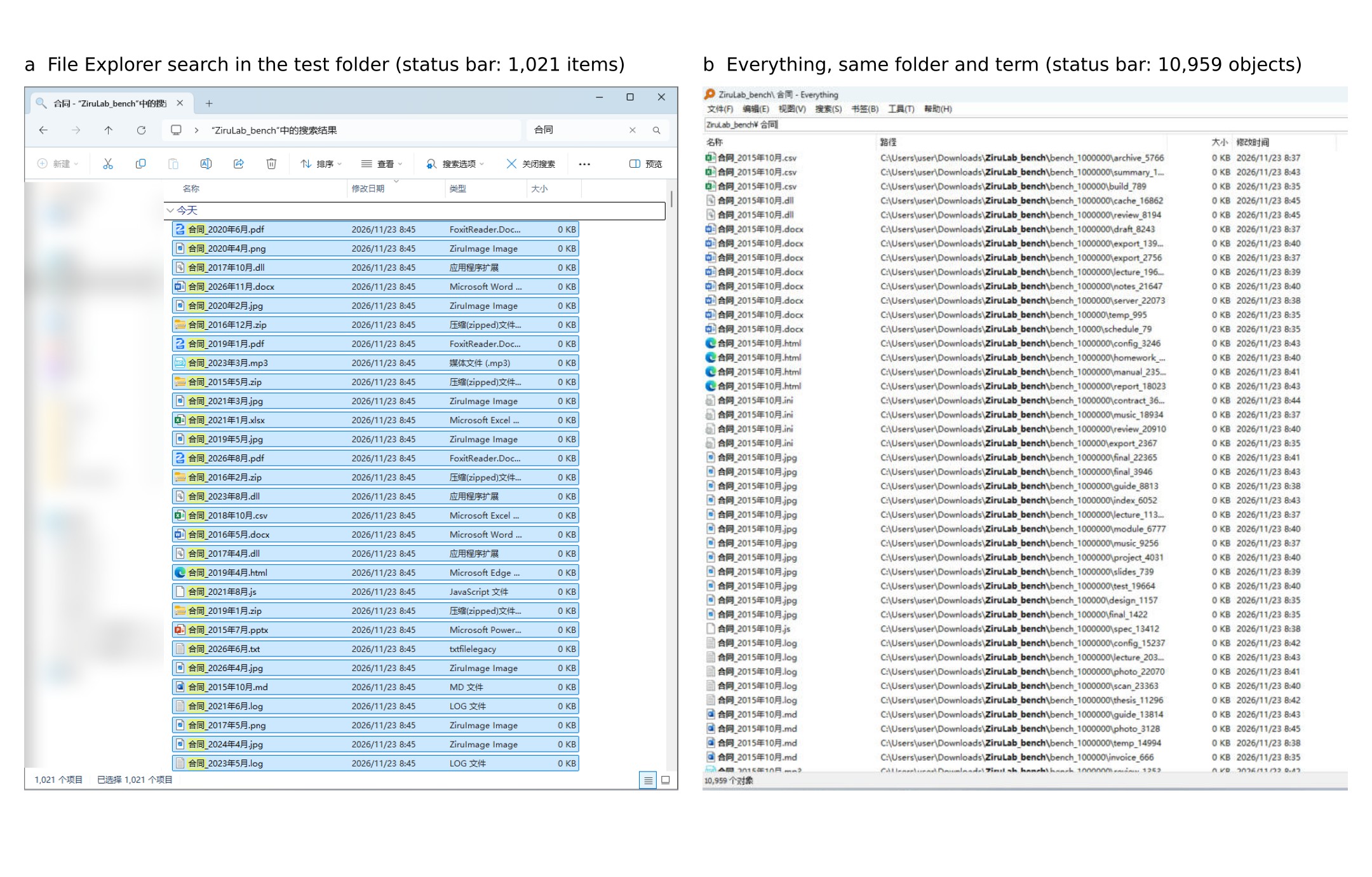 Figure 3. Real screenshots: File Explorer (1,021 items) and Everything (10,959 items) for the same folder and term; illustration only.
Figure 3 | Real screenshots: the same folder and the same word "合同". Left: File Explorer (1,021 items; the navigation pane is blurred). Right: Everything (10,959 items). The screenshots are for illustration and are not part of the measured data.
Files already on the PC: Everything is also much faster
| Question | Everything | Windows Search | How much slower Windows Search was |
|---|---|---|---|
| "How many are there?" | 0.069–0.071 s | 0.33–5.8 s | about 5–83 times |
| "Give me the first 100" | 0.17–0.26 s | 0.33–5.8 s | about 1.3–32 times |
Table 1 | The 394,396 existing files and folders. Each of the 10 search terms was run 10 times (n = 10); the table shows the range of the per-term medians.
- Everything is steady: All 10 terms took almost the same time, about 0.07 seconds; for each term, the fastest and slowest of the 10 runs differed by less than 0.004 seconds.
- Windows Search varies a lot: For 5 terms it was about 5–6 times slower than Everything; for the other 5 it was 29–83 times slower.
- No results does not mean fast:
img_2019andbudget_2024matched nothing, yet Windows Search took 4.4 and 5.4 seconds on them. The made-up term, which also matched nothing, took only 0.33 seconds. - For comparison: Without any index, a program that walked through the whole user folder took 11.3 seconds the first time and 4.3 seconds the second.
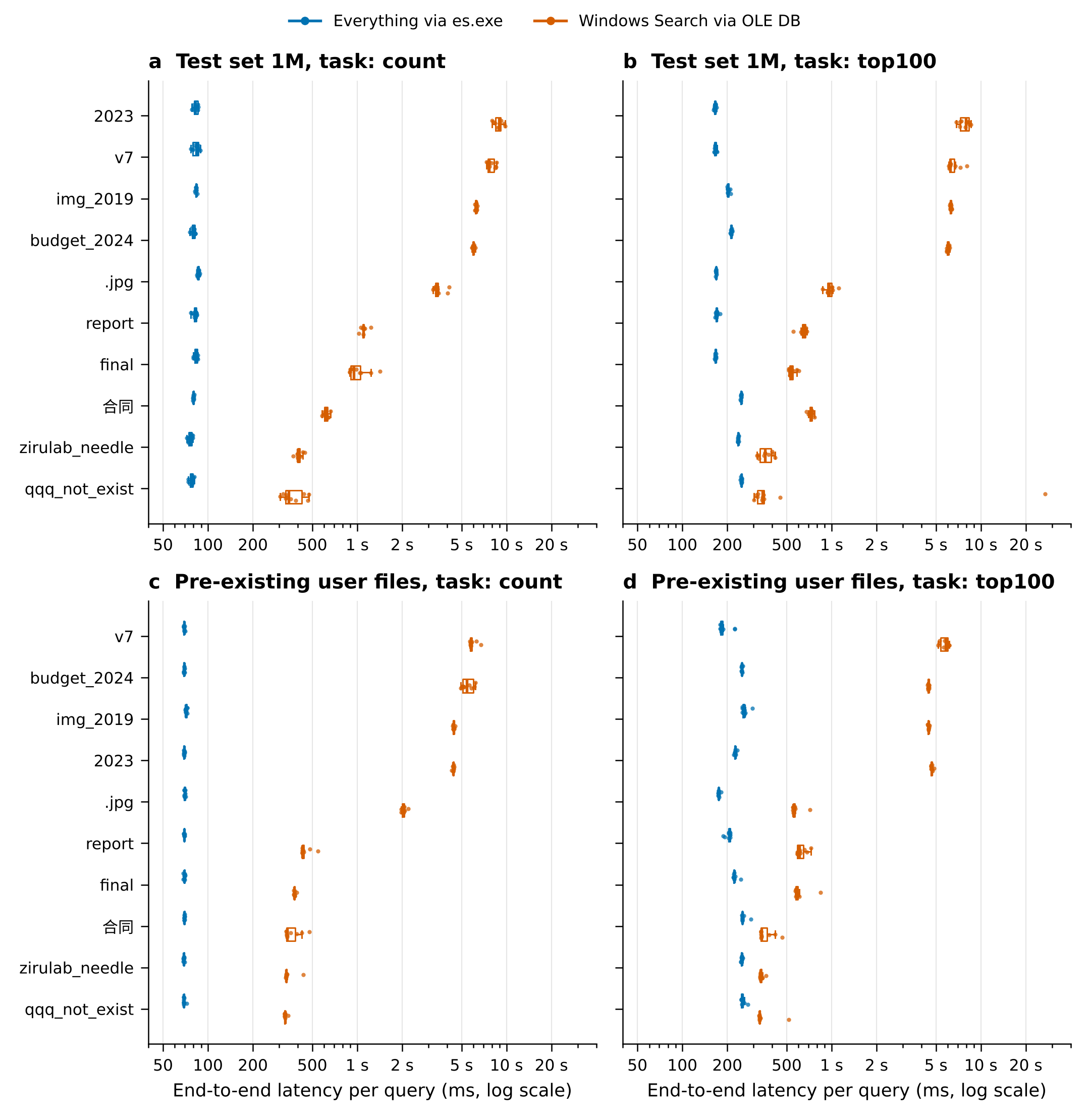 Figure 4. Spread of the 10 timed runs per search term (log scale).
Figure 4 | Measured data: the spread of the 10 runs (n = 10) for each search term, in milliseconds on a logarithmic scale; boxes show the middle half of the data and the line inside is the median. Top two panels: the million new files. Bottom two: the files already on the PC. In the top-right panel, one Windows Search run took 27 seconds; we do not know why, and we kept it in the data.
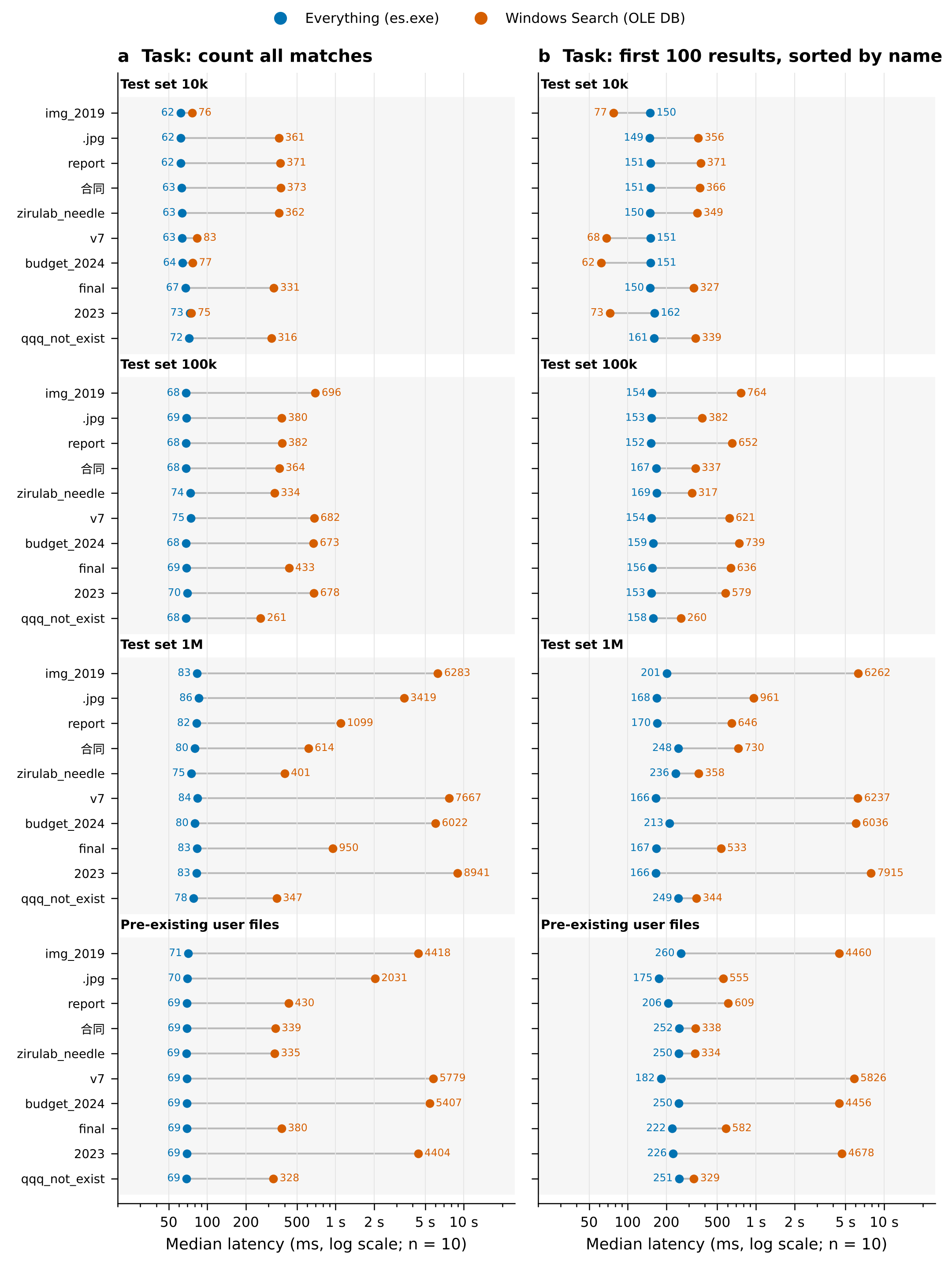 Figure 5. Median search times for all file groups and search terms (ms).
Figure 5 | Measured data: median times for all four file groups and 10 search terms (milliseconds; n = 10 per point). Blue is Everything; orange is Windows Search.
On the million new files, Everything took 0.075–0.086 seconds per search and Windows Search 0.35–8.9 seconds. At that point, however, Windows Search had picked up only a small part of the files, so this comparison means less.
Counting: Everything was exact; Windows Search came up about 1% short
- Everything: For every file group, every term and every run, the count matched the correct answer exactly.
- Windows Search (existing files): 5 of the 10 terms matched exactly. Overall it came up about 1.1% short (12,211 reported out of 12,344). The biggest gap was
report: 516 reported out of 573. - Windows Search (new files): Because most files had not been picked up yet, it reported only 0.28%–11.8% of the true numbers.
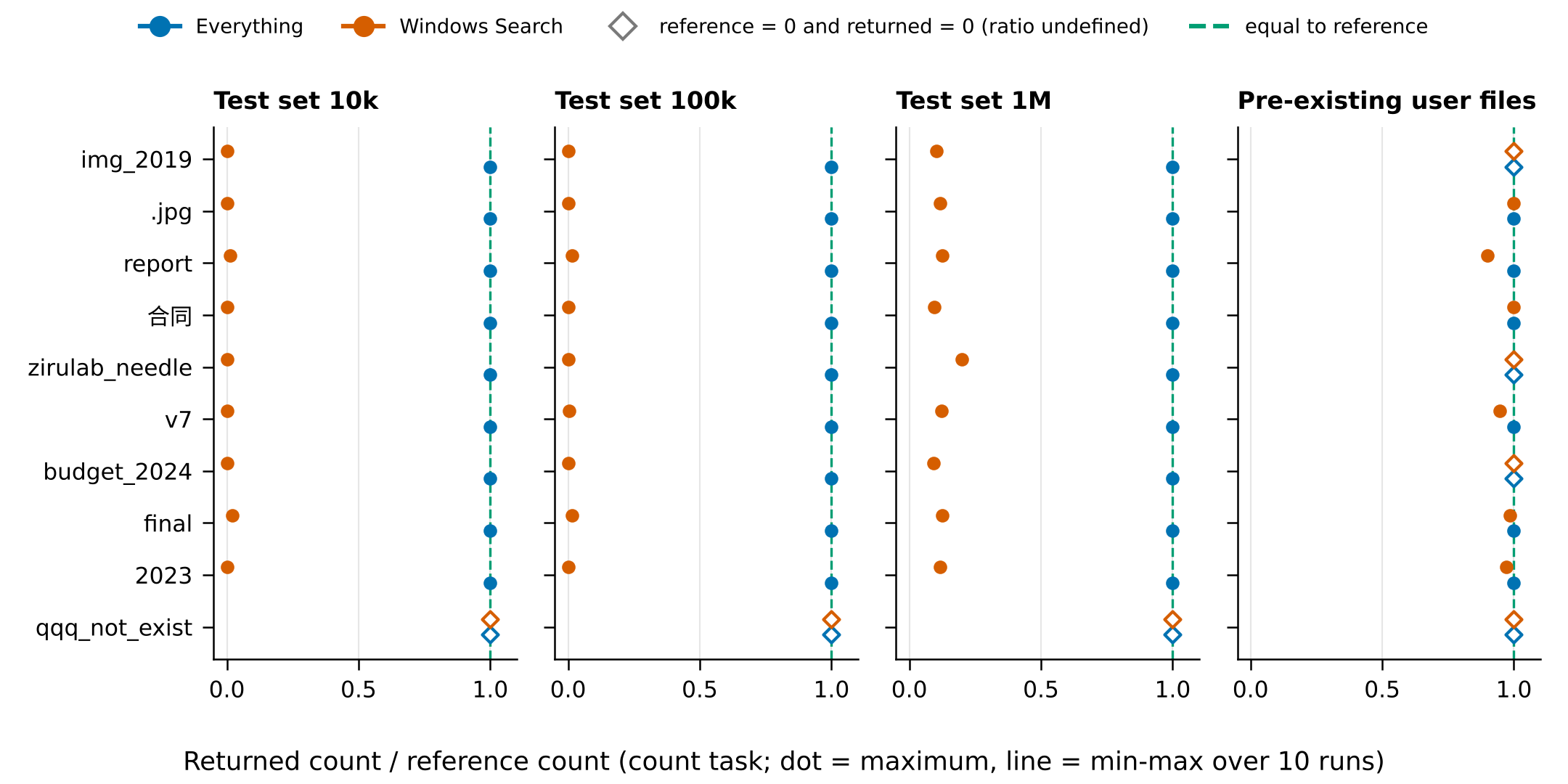 Figure 6. Reported count divided by true count; 1 means an exact match.
Figure 6 | Measured data: reported count ÷ true count (dot = highest of the 10 runs; line = range of the 10 runs). A value of 1 means an exact match. Open diamonds mean the true count was 0 and the tool also reported 0.
Memory: Everything uses more
- At 18:48, Everything's main program used about 401 MB of memory. When its index was recorded at 08:45 that morning, it held 3,861,093 files and folders, including all the test files. Its database file on disk was 76.6 MB.
- The main Windows Search process (SearchIndexer) used about 126 MB, 166 MB and 154 MB at the three points in time. A few helper processes used roughly 14 to 32 MB each.
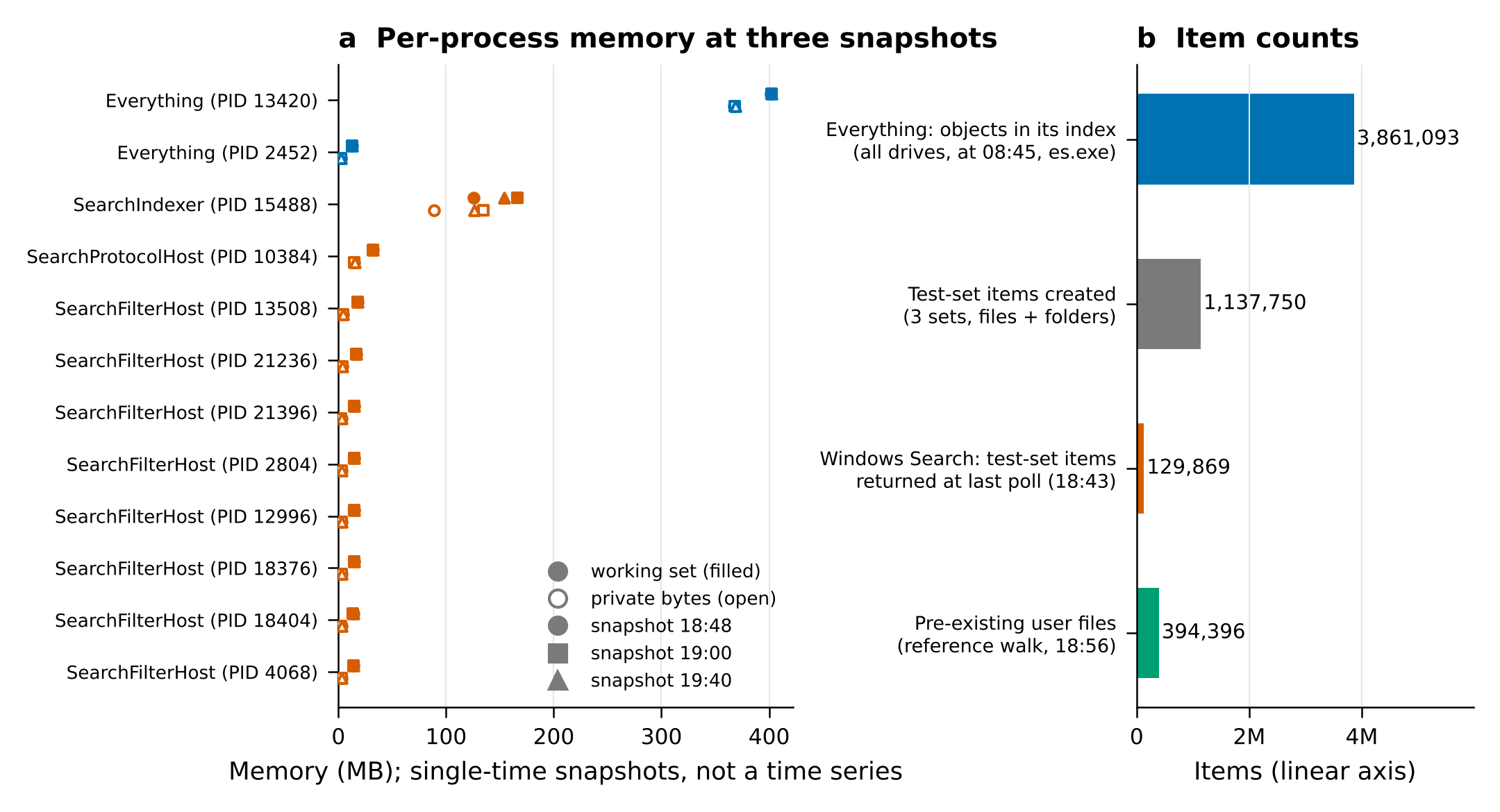 Figure 7. Memory per process at three snapshots, and the file counts involved.
Figure 7 | Measured data. Left: memory used by each process at three points in time (filled = working set, open = private memory; the two are measured differently and should not be added up). Right: the file counts involved.
Discussion
What the results show. On this PC, Everything could find new files almost as soon as they existed, and its name searches were fast and exact, at the cost of a few hundred MB of memory. This fits the vendors' descriptions: Everything records only names and keeps them all in memory [1][2], and its memory use is of the same order as its own figure of about 100 MB per million files [1]. Windows Search reads file contents and slows down while the PC is in use [3][4], which fits the slow indexing we saw. But "fits" is not "proves": we did not measure what either tool does internally.
Practical tips. If you have just unpacked or copied a very large number of files, a File Explorer search may miss many of them for hours; you can use Everything instead, or wait until indexing has finished. If you only search by file name, Everything was clearly faster and more accurate on our PC. If you need to search inside files, Everything cannot do that by default, but Windows Search can; this test compared file-name search only.
Results that run the other way, or need another explanation.
- In the 10,000-file set, for the "first 100" question, Windows Search was faster than Everything on 4 terms. It had not yet picked up those files and returned nothing, so this does not mean it was really faster.
- We do not know why Windows Search stalled for nearly 3 hours. It may have slowed down because the PC was in use, or there may be another reason; we did not record the PC's state at the time.
- About 0.045 of Everything's roughly 0.07 seconds is just starting the command-line tool. With another way of asking (for example, calling it from inside a program, or keeping the database connection open), the differences could become much bigger or smaller.
Limitations.
- We tested one PC on one day, in everyday use, without controlling what else was running.
- The two tools were asked in different ways, and the timings covered different work.
- We did not confirm that Windows Search had finished indexing the existing files, and its search area did not exclude the AppData folder as the other two did.
- The new test files were all empty, with generated names. Real files need Windows Search to read their contents, which may make it slower.
- We recorded only counts and did not check individual files, so we do not know which files Windows Search missed.
- The two tools were tested at different times of day. The times of the two Windows Search query sessions come from console output and were not written to the run log.
- The 10 runs of each case were made back to back. They show the variation at that moment, not from day to day.
Conclusions
On this Windows 11 PC in everyday use, Everything could find all of more than a million new files as soon as they were created, while Windows Search had picked up only 12.4% after 10 hours. When searching existing files by name, Everything took about 0.07 seconds and counted exactly, while Windows Search took 0.33–5.8 seconds and came up about 1% short; Everything used a few hundred MB more memory. A general conclusion would need repeated tests on several PCs, on several days, with the two tools asked in the same way.
Data and Code Availability
All raw data (per-run timing CSV files, indexing progress, memory snapshots, the run log and screenshots), the measurement and plotting programs, the independent re-calculation and check reports, and a more detailed research version of this paper are kept in the companion archive RESEARCH_ARCHIVE.zip. The raw records are preserved byte for byte, and every number in this article can be traced back to them.
Author Contributions
- Zi-Ru Jiang: Conceptualization, Resources, Project administration, Supervision, Writing – review & editing.
AI Assistance Disclosure
AI tools (Claude, Anthropic) were used to assist with conducting the experiments, processing the data, preparing the figures and drafting the manuscript. The author was responsible for the research direction, the review of the results and the final published content.